Disclosure: Smart Gear Picks earns a commission from qualifying Amazon purchases made through links on this page, at no extra cost to you. Prices are approximate, based on manufacturer, review and price-tracker sources, and they change often. Check the current price on Amazon before buying.
Prices checked on November 2, 2026 (approximate; prices change)
Here’s how it usually goes. You dock your MacBook Air on a stand, grab the cheap wireless combo from the office closet, and within an hour you’ve hit the wrong key a dozen times. Where your thumb expects Command, there’s Option. And the dongle won’t plug in, because your Mac only has USB-C ports. Apple’s Magic Keyboard and Magic Mouse fix all of that, but together they cost more than $150.
This guide covers the space in between: five wireless combos under $60 with Command and Option in the right spots, working Mac media keys, and sensible connection options. For a standalone keyboard or mouse, our Best Wireless Keyboards Under $40 and Best Wireless Mice Under $40 cover those. This one is about a matched set for your Mac desk.
Quick picks
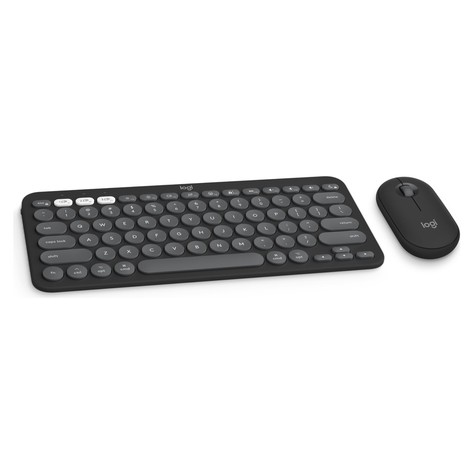
- Best Overall for Mac: Logitech Pebble 2 Combo for Mac (~$43–$50)
- Best Mac-Native Compact with Number Pad: Macally Compact Bluetooth Keyboard and Mouse (~$50–$60)
- Best Budget Full-Size Rechargeable: SABLUTE KMA2 (~$30–$40)
- Best Slim Metal Mac-Layout Set: seenda SKM64-2 (~$40–$52)
- Best Full-Size with a USB Receiver (Watch the Price): Logitech Signature MK650 (~$52–$62)
Comparison table
| Combo | Price | Connection | Mac keys | Multi-device | Power | Mouse DPI / gestures | Warranty | Best for |
|---|---|---|---|---|---|---|---|---|
| Logitech Pebble 2 Combo for Mac | ~$43–$50 | Bluetooth LE only | Mac layout, Cmd/Option printed | 3 devices (Easy-Switch) | 2×AAA keyboard (~36 mo), 1×AA mouse (~24 mo) | 400–4000 DPI, silent clicks, custom middle button (Options+) | 1 year | MacBook + iPad users who want quiet, compact |
| Macally Compact combo | ~$50–$60 | Bluetooth only | Native Mac layout, Mac shortcut keys | 3 devices (one key) | USB-C rechargeable (up to ~2 months) | 800/1200/1600 DPI, quiet clicks | 2 years | Small desks that still need a number pad |
| SABLUTE KMA2 | ~$30–$40 | Bluetooth only | Mac-style layout | 3 channels | USB-C rechargeable (~75 h keyboard, ~50 h mouse use) | 1200 DPI fixed, silent clicks | 2 years | Lowest-cost full-size Mac set |
| seenda SKM64-2 | ~$40–$52 | Bluetooth only | Standard Mac layout | 3 devices (BT1/2/3) | USB-C rechargeable (up to 200 h standby) | Adjustable DPI, quiet clicks | 1–2 years (seenda lists both) | Slim, metal-top look on a white or silver desk |
| Logitech Signature MK650 | ~$52–$62 | Logi Bolt USB-A receiver + Bluetooth | Dual-labeled keys, Mac mode, Options+ | Receiver + Bluetooth | 2×AA keyboard (~36 mo), 1×AA mouse (~24 mo) | 400–4000 DPI, SmartWheel, back/forward buttons | 2 years (business data sheet) | Full-size typing, Mac mini or a dock with USB-A |
Warranties are US manufacturer terms where listed. None of these mice do Magic Mouse swipe gestures.
1. Logitech Pebble 2 Combo for Mac: Best Overall for Mac
Key specs: Bluetooth LE (no receiver in the Mac version) · Mac key layout · Easy-Switch for 3 Apple devices · 10 customizable Fn keys · Pebble Mouse 2 M350s, 400–4000 DPI, Silent Touch clicks · 2×AAA keyboard battery (up to 36 months), 1×AA mouse battery (up to 24 months)
Price: ~$43–$50 (approx. as of Nov 2, 2026; prices change)
Who it’s for: You work on a MacBook, often hop to an iPad or iPhone, and want a quiet, compact set from a brand with good macOS software and support.
Why we picked it
- It’s the only name-brand combo under $60 that Logitech builds specifically for Apple devices. Command, Option and the Mac function row (brightness, Mission Control, dictation, emoji) are printed and mapped out of the box, so there’s nothing to remap.
- Easy-Switch jumps between three Apple devices with one button, Logi Options+ lets you remap the Fn keys and middle button, and Silent Touch clicks are about 90% quieter than Logitech’s M185.
Watch-outs: The keyboard has no number pad and its round keys take a day to get used to. It runs on disposable AAA and AA batteries, not USB-C charging. The Mac version is Bluetooth-only (the regular Pebble 2 Combo adds a Logi Bolt receiver). The keyboard is the Pebble Keys 2 K380s from our wireless keyboards guide, so the combo is the better deal if you need a mouse too. Warranty is 1 year.
2. Macally Compact Bluetooth Keyboard and Mouse: Best Mac-Native Compact with Number Pad
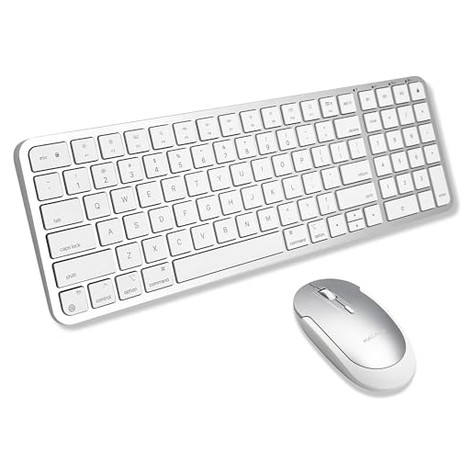
Key specs: Bluetooth, 3 Apple devices with a dedicated switch key · 78 low-profile scissor keys plus number pad in a compact two-zone layout · Mac layout with Command/Option and Mac shortcut keys · USB-C rechargeable keyboard and mouse (up to about two months per charge) · 3 DPI levels (800/1200/1600), quiet clicks, ambidextrous
Price: ~$50–$60 (approx. as of Nov 2, 2026; prices change)
Who it’s for: You do spreadsheets, invoices or budgets on a Mac, want a number pad, and don’t have room for a full-width keyboard on a small desk.
Why we picked it
- Macally has made Mac accessories for decades. Keys are labeled and mapped like an Apple keyboard, so MacBook muscle memory carries over.
- The compact layout keeps a number pad but trims the gaps, so the mouse sits closer to your body.
- Both pieces charge over USB-C, the same cable as your MacBook, for up to about two months per charge.
Watch-outs: At about $60 it’s at the top of our budget, and Amazon’s price-tracker history for it is thin. Check that it’s sold new by Macally or Amazon. It’s Bluetooth-only with no receiver. The mouse is a simple, low-profile shape, so people with large hands may prefer a bigger mouse from our wireless mice guide. Warranty is 2 years.
3. SABLUTE KMA2: Best Budget Full-Size Rechargeable
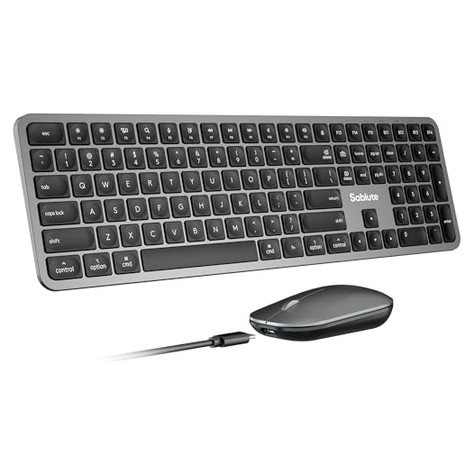
Key specs: Bluetooth only, 3 channels · full-size Mac-style layout with number pad · quiet scissor keys · USB-C rechargeable (USB-C to USB-C cable included), usable while charging · keyboard up to about 75 hours of continuous use, mouse about 50 hours · 1200 DPI mouse with silent clicks
Price: ~$30–$40 (approx. as of Nov 2, 2026; prices change)
Who it’s for: You want a full-size Mac-layout keyboard with a number pad and a rechargeable mouse for the least money, for example for a Mac mini or an iMac at home.
Why we picked it
- It’s the cheapest full-size, Mac-layout, USB-C rechargeable combo we found with a current price history, at around $30 to $40.
- It includes a USB-C to USB-C cable, so it charges straight from a MacBook, and you can keep typing while it charges. The scissor keys feel closer to a MacBook than most budget combos.
Watch-outs: SABLUTE is a newer brand with a short review history, so buy from the brand’s own Amazon storefront and keep the box for the return window. The batteries are rated in hours of continuous use, not months, so expect to charge every week or two with daily use. The mouse is fixed at 1200 DPI. Warranty is 2 years from SABLUTE.
4. seenda SKM64-2: Best Slim Metal Mac-Layout Set
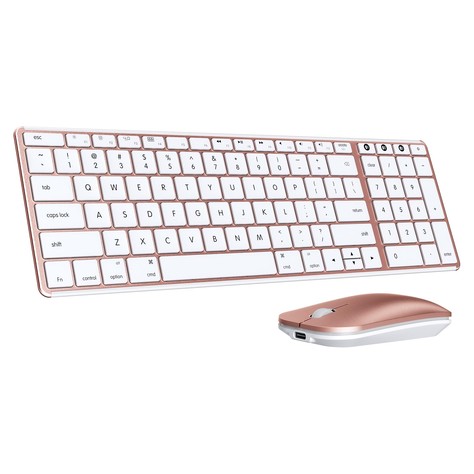
Key specs: Bluetooth only, 3 channels (BT1/BT2/BT3) · standard Mac layout, 110 keys · stainless steel top with ABS body · keyboard about 0.12″ thin at the edge, mouse 0.9″ tall · USB-C rechargeable, up to 200 hours standby, auto-sleep and on/off switch · quiet keys and clicks · macOS 10.12+, iPadOS/iOS 13+
Price: ~$40–$52 (approx. as of Nov 2, 2026; prices change)
Who it’s for: You want a metal-top set that looks at home next to a silver Mac, and you split time between a Mac and an iPad.
Why we picked it
- The stainless steel top makes it stiffer than all-plastic budget sets.
- Seenda designs it around Apple devices: Mac layout, iPad and iPhone support, and three dedicated Bluetooth channel keys so you can see which device you’re on.
- It charges over USB-C and has a real on/off switch for carrying it in a bag.
Watch-outs: The price has climbed. It has tracked from about $38 to $52, and it was near the top of that range in late October, so watch for a dip. Seenda says it’s not fully compatible with Windows. The mouse is very flat, and seenda itself suggests a mouse pad and a short adjustment period. Seenda lists both 12-month and 2-year warranty terms, so keep your receipt.
5. Logitech Signature MK650: Best Full-Size with a USB Receiver (Watch the Price)
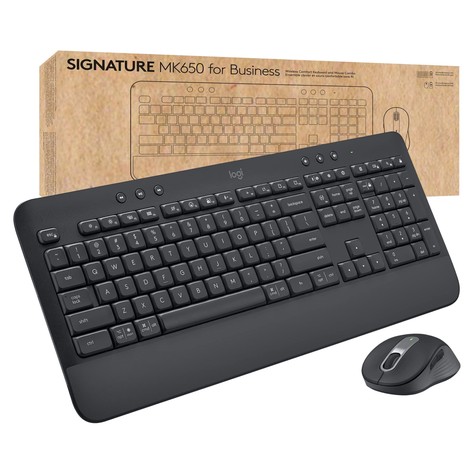
Key specs: Logi Bolt USB-A receiver (pre-paired) plus Bluetooth LE · full-size K650 keyboard with number pad and built-in palm rest · dual-labeled modifier keys with macOS support · Logi Options+ on macOS · M650 mouse, 400–4000 DPI, SmartWheel, quiet clicks, back/forward side buttons · 2×AA keyboard (up to 36 months), 1×AA mouse (up to 24 months)
Price: ~$52–$62 (approx. as of Nov 2, 2026; prices change)
Who it’s for: You want a full-size, cushioned keyboard and a proper-sized mouse, and you have a Mac mini, a Mac Studio, or a dock or hub with a USB-A port for the receiver.
Why we picked it
- It’s the only pick with both a USB receiver and Bluetooth. The Bolt receiver stays solid in crowded offices, and Bluetooth covers your MacBook away from the dock.
- Logitech officially supports macOS on it, and Options+ can map the mouse side buttons to Mac actions like Mission Control.
- The full-size M650 is the most comfortable mouse here, with a SmartWheel and back/forward buttons, and the palm rest helps on long typing days.
Watch-outs: Our list’s price ceiling is $60, and this one often sits right around $62 on Amazon. It has dipped to about $51 before, so buy it at $60 or less. The Bolt receiver is USB-A, so a MacBook Air or Pro needs a USB-C adapter or a hub (see our USB-C hubs for MacBook Air), or you can just use Bluetooth. Keycaps carry both Windows and Mac labels.
How we picked
We started with wireless keyboard and mouse combos under $60 that list macOS support. We cut PC combos whose makers don’t support macOS (Logitech lists the popular MK470 as Windows and ChromeOS only). Then we checked the things that matter on a Mac: Command and Option positions, working media and brightness keys, Bluetooth versus a receiver, and whether the receiver is USB-A. We also checked price histories so every pick is regularly at or under $60.
We left out Logitech’s MX Keys S Combo (about $200) and Satechi’s slim Mac pair (about $80+) on price, and the seenda COS500 because its Amazon listing hasn’t had a tracked price in months.
How to choose a wireless keyboard and mouse combo for Mac
1. Mac layout vs. a Windows layout: the Cmd/Option swap
On a Mac keyboard, the keys next to the space bar run Control, Option, Command. On a Windows keyboard they run Ctrl, Windows, Alt. macOS treats Windows as Command and Alt as Option, so the two end up swapped. A Mac-layout combo avoids this. If you already own a PC keyboard, fix it in System Settings → Keyboard → Keyboard Shortcuts → Modifier Keys. Pick that keyboard from the menu and swap Option and Command. Multi-OS Logitech keyboards can also switch to Mac mode (on many models, hold Fn+O for three seconds).
2. Logi Options+ and other Mac software
Logitech combos work without software, but Logi Options+ for macOS adds key remapping, app-specific mouse buttons and battery alerts. macOS will ask you to allow Accessibility and Input Monitoring for it. If a remapped button does nothing, that permission is usually why. The Macally, SABLUTE and seenda sets need no software.
3. Bluetooth vs. a receiver on a MacBook
Current MacBook Air and Pro models only have USB-C/Thunderbolt ports, while Logitech Bolt and Unifying receivers are USB-A, so you’ll need an adapter or hub. That’s why four of our five picks are Bluetooth. A receiver still makes sense on a Mac mini or Mac Studio with spare USB-A ports, or in an office crowded with Bluetooth devices.
4. Magic Mouse gestures are not supported
No third-party mouse at this price does Magic Mouse gestures like swiping between full-screen apps. Use Control+arrow keys to switch Spaces, map Mission Control to a mouse button in Logi Options+, or add a Magic Trackpad. Also, no third-party keyboard has Touch ID, so you’ll type your password or use Apple Watch unlock.
5. Rechargeable or replaceable batteries
USB-C rechargeable sets (Macally, SABLUTE, seenda) share your MacBook’s cable, but you’ll plug them in every week or two. Logitech’s AA/AAA combos last one to three years on a set of batteries, which suits people who forget to charge things.
FAQs
Can I use a Windows keyboard and mouse with a Mac?
Yes. Any standard Bluetooth or USB keyboard and mouse works on a Mac. The catch is that the Windows and Alt keys act as Command and Option but sit in swapped spots, and some media keys may not work. Swap them under Modifier Keys (see above) or buy a Mac-layout combo.
Do Logitech keyboard and mouse combos work with a Mac?
Many do, but not all. The Pebble 2 Combo for Mac and the Signature MK650 officially support macOS and work with Logi Options+. Some budget receiver combos, like the MK270 and MK470, are listed for Windows and ChromeOS only. They often type fine on a Mac, but without official support.
How do I connect a wireless keyboard and mouse to my MacBook without USB-A ports?
Use Bluetooth: put the keyboard in pairing mode, then click Connect next to it in System Settings → Bluetooth. For a USB-A receiver, add a USB-C to USB-A adapter or hub.
Does a third-party mouse support Mac gestures like the Magic Mouse?
No. Swipe gestures need the Magic Mouse’s touch surface or a trackpad. With Logitech mice you can map buttons to Mission Control, App Exposé or desktop switching in Logi Options+, which covers the most-used gestures.
Quick takeaway
For most Mac users, the Logitech Pebble 2 Combo for Mac is the one to get. Mac keys out of the box, three-device switching and quiet clicks. If you need a number pad on a small desk, the Macally Compact is the most Mac-native set. On a tight budget, the SABLUTE KMA2 gets you a full-size, USB-C rechargeable Mac layout for around $35. The metal-top seenda SKM64-2 is worth catching on a dip. If you want a receiver and a bigger mouse, the Logitech Signature MK650 is the pick once it’s $60 or less.
Related: Best Wireless Keyboards Under $40 (2026) (standalone keyboards, post 134) · Best Wireless Mice Under $40 (2026) (standalone mice, post 102)


Leave a Reply